
Screen sharing to Google TV and Android TV
Your iPhone, iPad or Mac, on your TV.
MavaScreen shares the screen and sound of your iPhone, iPad or Mac to a Google TV or Android TV over your home Wi-Fi.
- No cables
- No account
- Sound included
- Stays on your Wi-Fi
Step 1
Get MavaScreen TV on your TV
MavaScreen TV is the free app for Google TV and Android TV that shows your screen. It comes from Google Play.
How to install it
- On your TV: open Google Play, search for MavaScreen TV and install it.
- From the web: open MavaScreen TV on Google Play on your phone or computer, signed in to the same Google account as your TV, and choose your TV as the device to install it on.
Step 2
Get MavaScreen on your iPhone, iPad and Mac
MavaScreen for iPhone, iPad and Mac comes from the App Store.


Coming soon to the App Store
One purchase covers your iPhone, iPad and Mac with the same Apple Account.
For iPhone and iPad with iOS or iPadOS 17 or later, and Mac with macOS 14 or later.
How it works
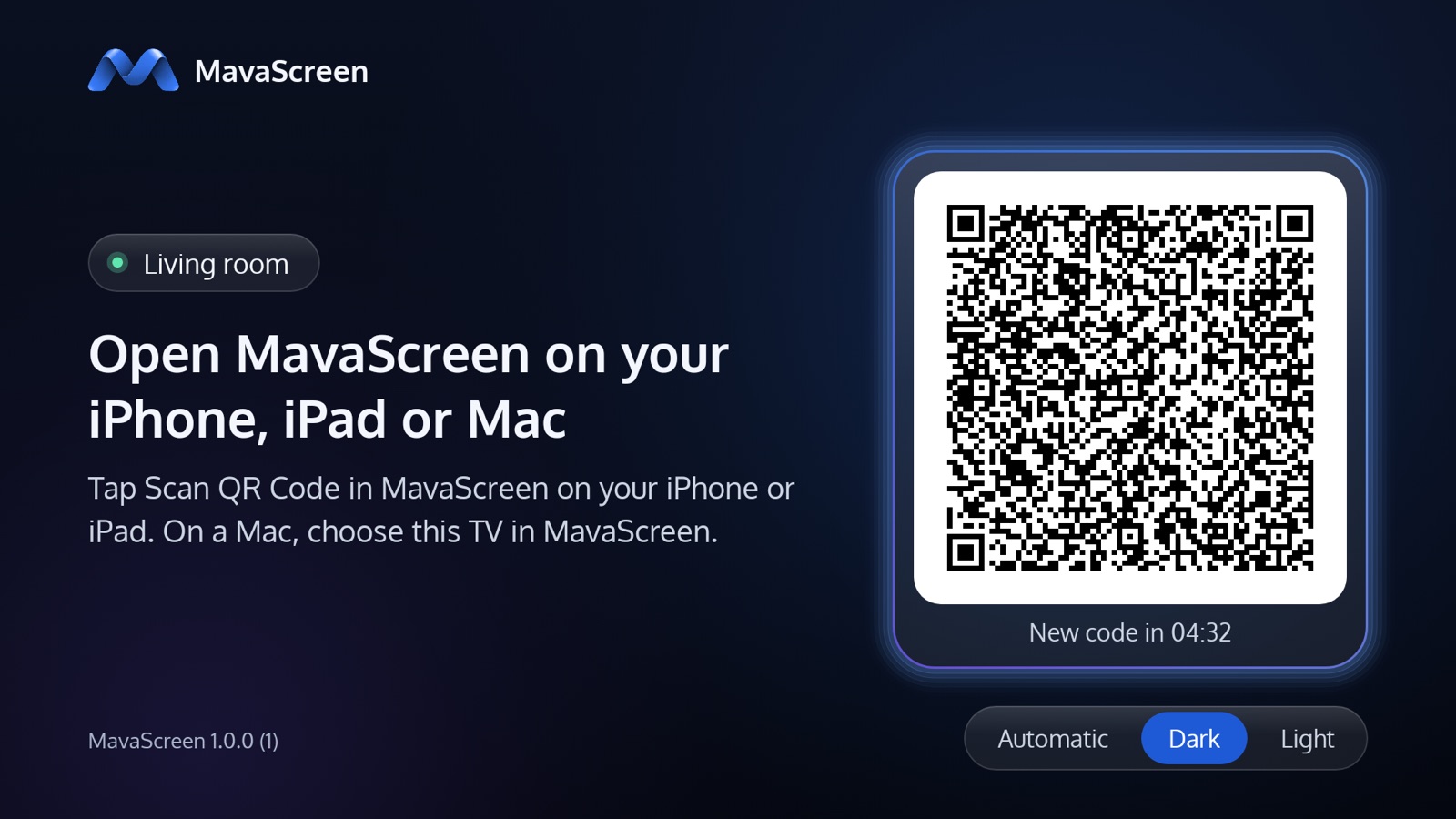
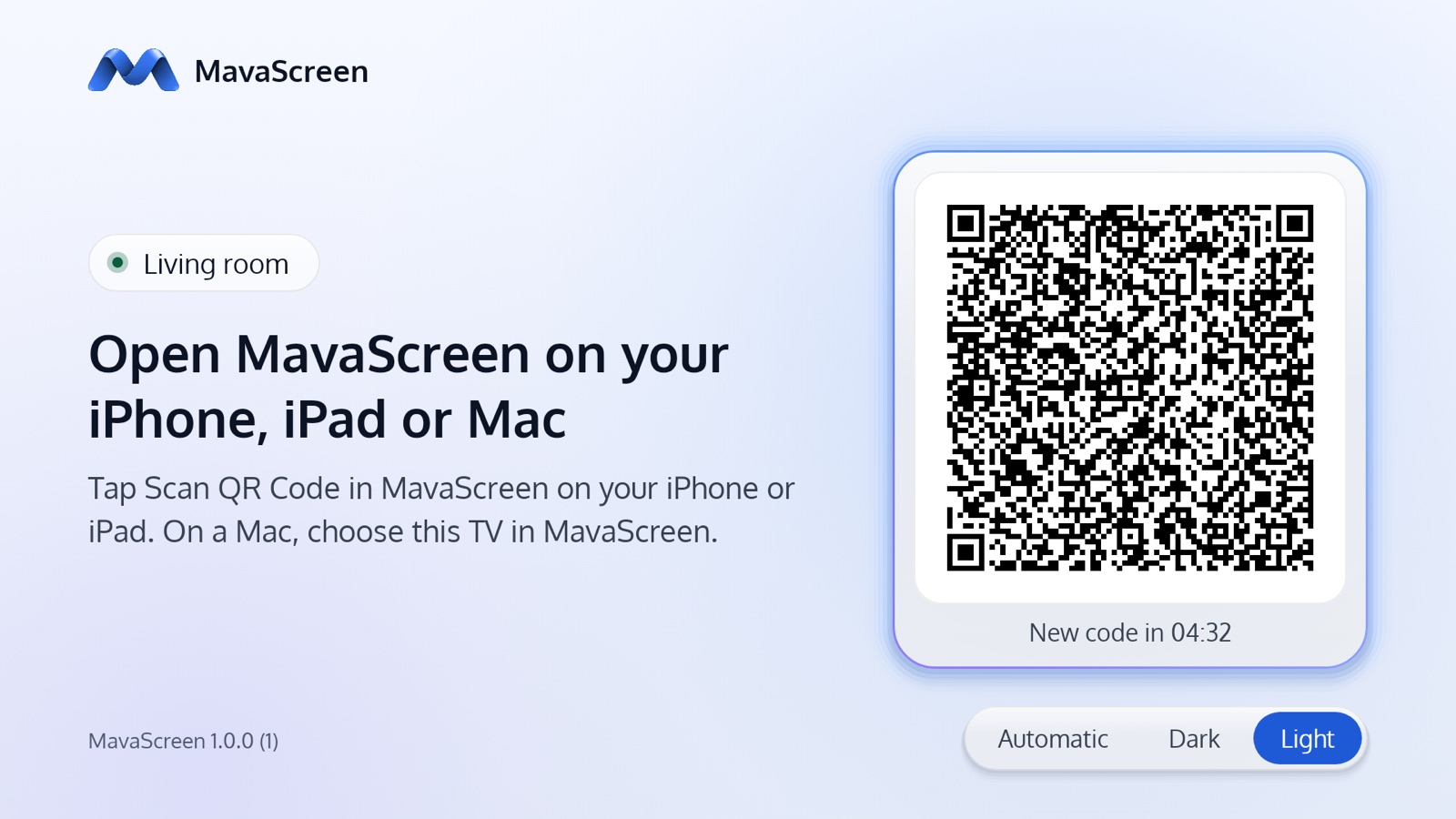
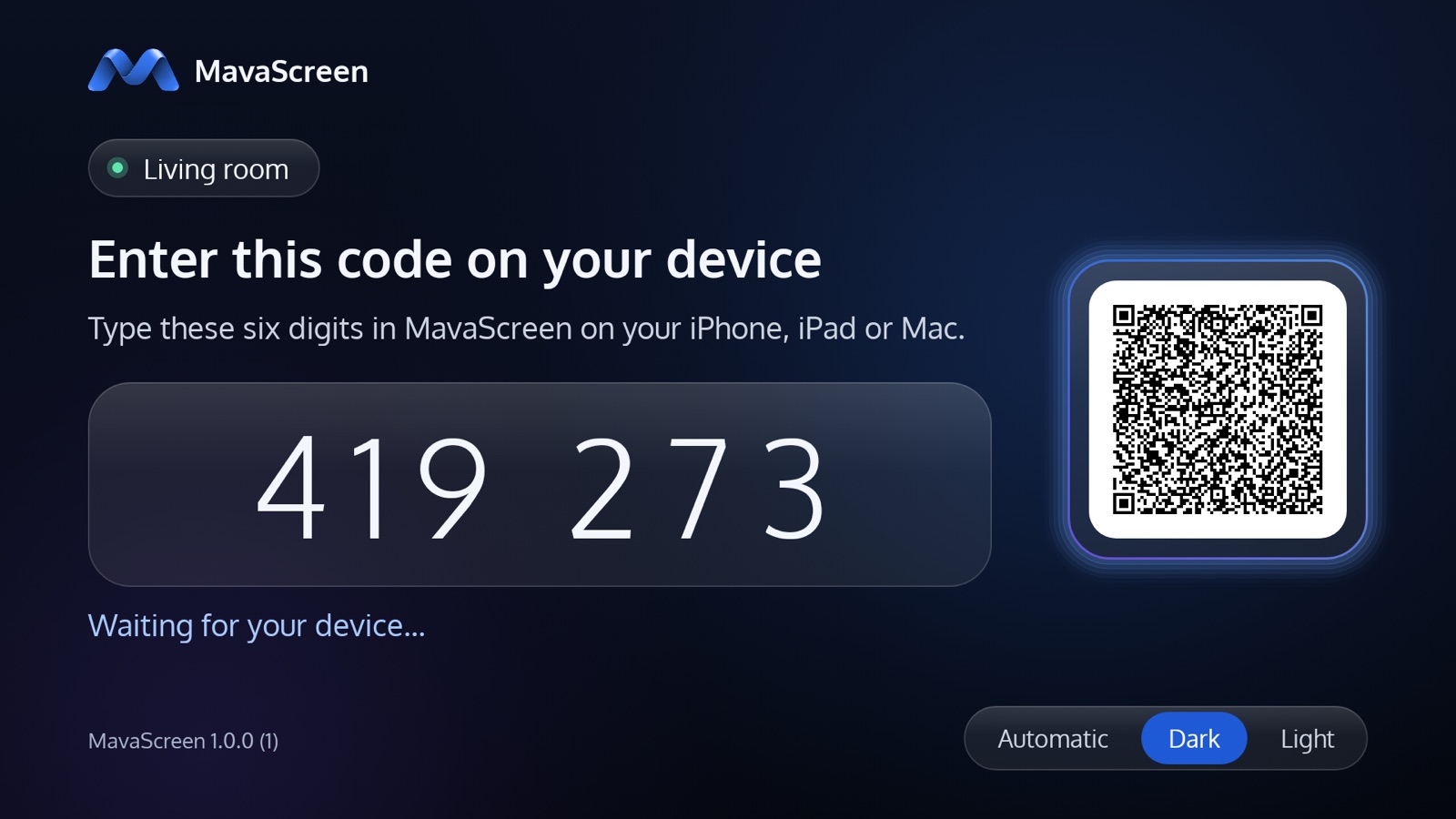
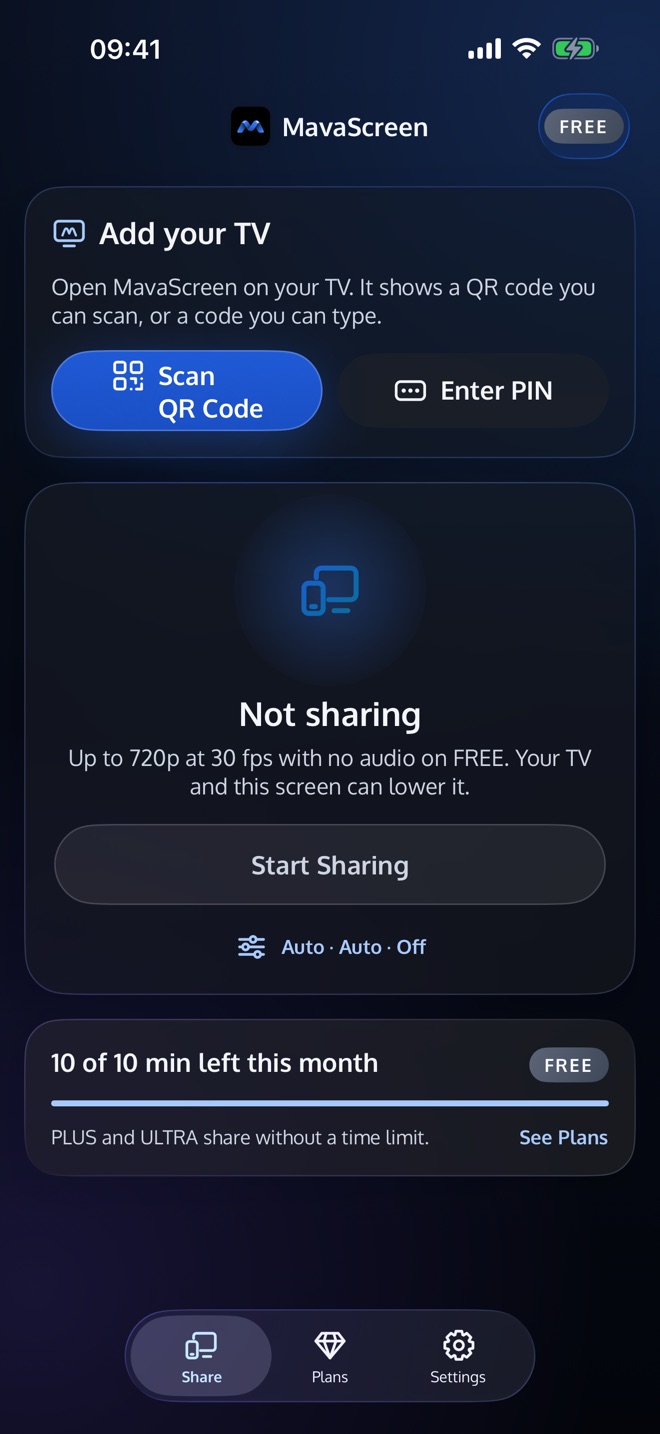
- Open MavaScreen TV on your TV. It shows a QR code and a PIN.
- On your iPhone or iPad, open MavaScreen and tap “Scan QR Code”, then point the camera at the TV. Or tap “Enter PIN” and type the PIN. On a Mac, choose your TV in MavaScreen and type the PIN.
- Tap “Start Sharing” and confirm in the system sheet. Your screen and sound appear on the TV.
- Stop whenever you like: in the app, with the system’s screen-sharing indicator, or with the Back button of the TV remote.
What the QR code does
The QR code on your TV is a link to mavascreen.com/p. If MavaScreen is on your iPhone or iPad, the camera opens the app directly and pairing begins. If it is not, the link opens a page that takes you to the App Store.
You pair only once. After that, the TV remembers your device.
Plans
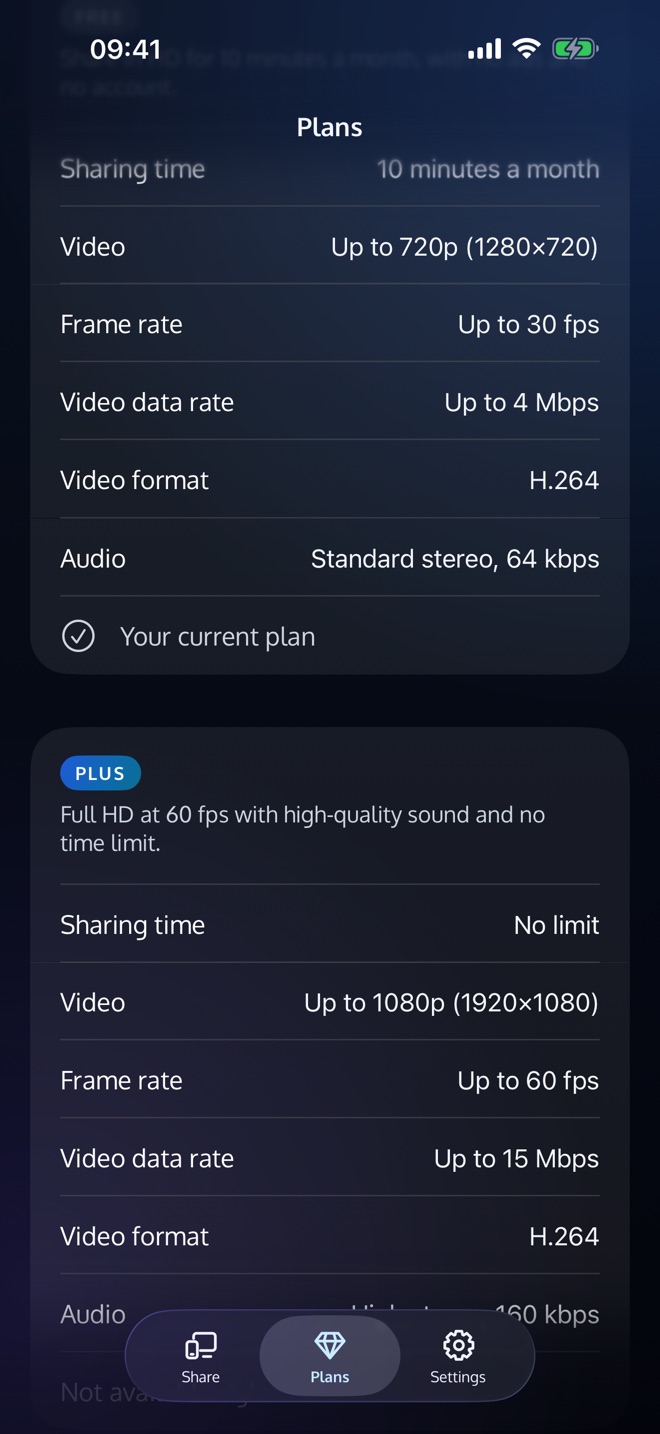
Start with FREE, and choose PLUS or ULTRA in the app when you want more.
FREE
HD 720p at 30 fps
10 minutes a month
Counted across the devices on your Apple Account. No ads and no watermark.
PLUS
Up to 1080p at 60 fps
No time limit
High-quality sound.
ULTRA
Up to 4K at 60 fps on supported Macs and TVs
No time limit
HEVC where both devices support it, and studio-quality sound.
PLUS and ULTRA are subscriptions, monthly or yearly. The yearly plans start with a 7-day free trial for eligible subscribers.
The App Store shows the prices in your country before you buy.
Every plan includes sound. Your TV and your network can lower the quality a share uses.
Questions and answers
What network do I need?
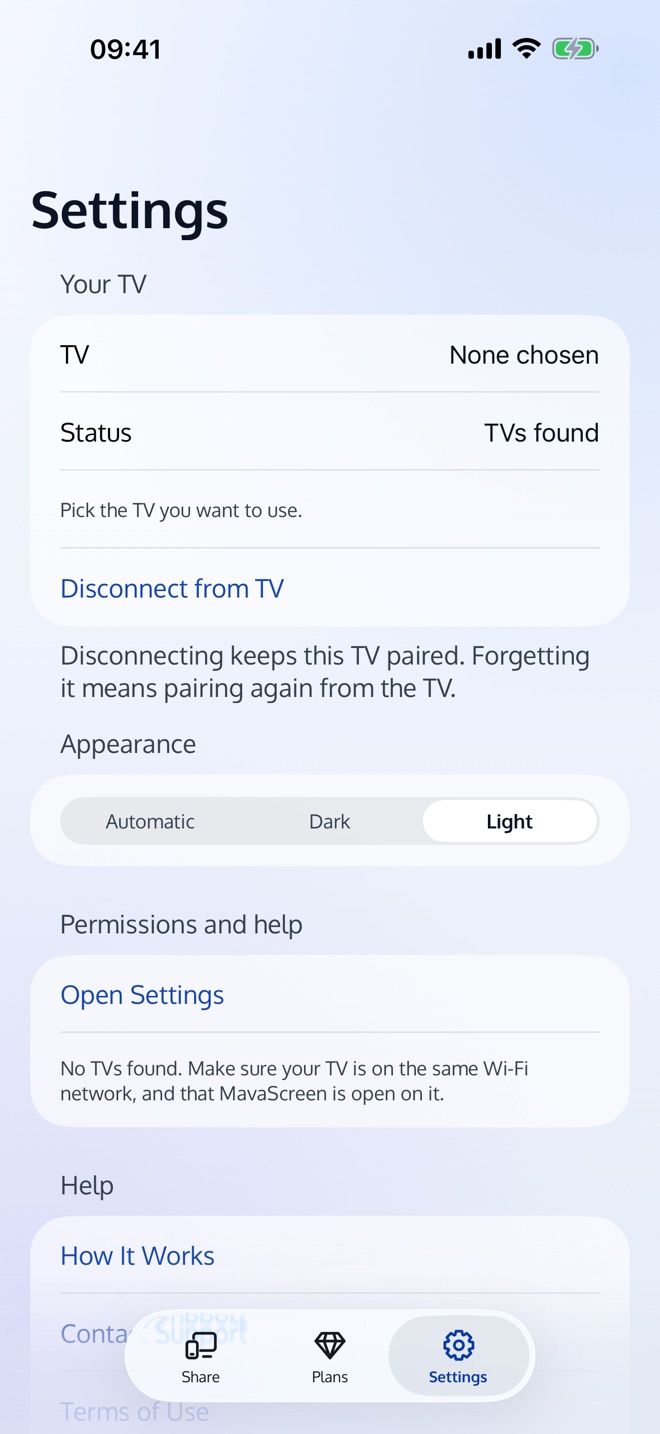
Your iPhone, iPad or Mac and your TV must be on the same Wi-Fi network, such as your home Wi-Fi. Guest networks that keep devices apart, and VPNs, can stop them from finding each other.
Which TVs work?
Google TV and Android TV: TVs and streaming devices that can install MavaScreen TV from Google Play.
Which iPhone, iPad and Mac work?
An iPhone with iOS 17 or later, an iPad with iPadOS 17 or later, or a Mac with macOS 14 or later.
Do I need an account?
No. There is no sign-up and no sign-in. Subscriptions go through your Apple Account.
Why is a video black on the TV?
Copy-protected video, such as films from many streaming apps, is not captured by the system, so it shows black on the TV. This is the same on every plan.
Is sound included?
Yes, on every plan. Adding your voice with the microphone is optional. The microphone also hears your TV, so a loud TV can cause an echo: keep the TV quiet or use headphones.
Can I pair more than one device with a TV?
The TV remembers one paired device. When another device wants to pair, the TV asks you before it replaces the first one.
What happens to my privacy?
Your screen and sound never leave your home network: they go straight from your device to your TV, encrypted, and nothing is recorded. MavaScreen has no account, no ads and no analytics.